1. Introduction
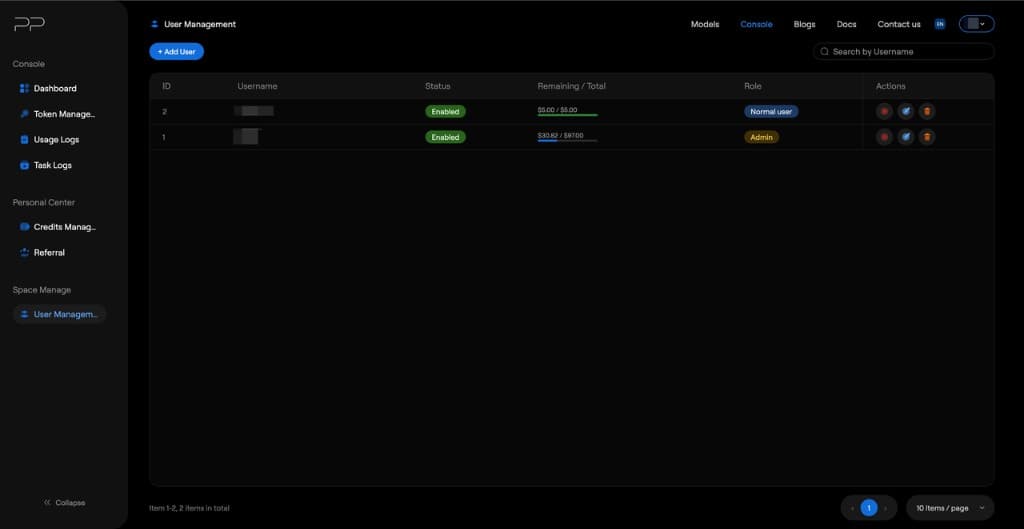
Space Management provides full management capabilities for team members. As a space manager, you can create and manage sub-accounts, allocate quotas, view member usage, and promote members to administrators to help you with daily management.
2. Roles and Permissions
Platform users are divided into the following roles, with permissions ranked from highest to lowest:
Space Manager / Tenant Admin
Tenant administrators created by the super admin (operations staff). They have the following permissions: • Create, edit, and delete sub-accounts • Allocate quotas to sub-accounts (deducted from your own total quota) • Promote normal users to administrators • View usage data for all members in the space • Create and manage your own API keys ✨ Under the Usage Logs of a Space Manager account, logs from all sub-users will also be shown.
Admin
High-permission members promoted by the Space Manager. They assist with daily tenant management. Their permissions are mostly the same as Space Managers, but with the following limitations: • Can: create users, edit users, allocate quotas, enable/disable users • Cannot: delete (disable) users Users created by Admin belong to the corresponding Space Manager in the system. When an Admin assigns quotas, it also uses the Space Manager’s total quota.
Normal User
The account type with the lowest permissions. They can log in to the platform, create their own API keys, and view their own usage and logs, but cannot manage other users.
3. User Management Page
How to enter After logging in, find Space Manage → User Management in the left sidebar to open the user management page. ⚠ Note: Only Space Managers and Admins can see this menu. Normal users will not see User Management in their sidebar.
User list The page displays all users in the current space in a table. Fields are as follows:
| Field | Description |
|---|---|
| ID | User sequence number |
| Username | Username |
| Status | Account status (Enabled / Disabled) |
| Remaining / Total | Remaining quota / total quota (USD) |
| Role | User role (Admin / Normal user) |
| Actions | Action buttons |
You can quickly find specific users using the Search by Username input in the top-right corner.
Actions (Buttons) Description
Each user row’s Actions column has three action buttons (from left to right): 1. Enable/Disable (circular button): toggle the user’s enable/disable state. After disabling, the user cannot log in, and their API keys will stop working. 2. Edit (pencil icon): open the edit dialog to modify user information and quota. 3. Delete (trash icon): permanently delete the user account. This action cannot be undone. After deletion, the allocated quota will be returned to the Space Manager’s quota.
4. Create User
1. On the User Management page, click the + Add User button at the top-left. 2. In the Add User dialog, fill in the following information:
| Field | Description |
|---|---|
| Field | Description |
| Username | Username for login (required) |
| Display Name | Display name (optional). If left blank, the username is used by default |
| Password | Login password (required, at least 8 characters) |
3. After filling everything, click Create to complete the creation. The newly created user’s default role is Normal user, status is Enabled, and the initial quota is $0.00. After creation, you need to assign quota to them via the edit function. Please share the username and password with the corresponding team members so they can log in to the platform.
5. Edit User
1. In the user list, click the edit button (pencil icon) in the Actions column of the target user. 2. In the Edit User dialog, you can modify the following information:
| Field | Description |
|---|---|
| Username | Edit username |
| Display Name | Edit display name |
| Password | Reset password. If left blank, the original password remains unchanged; if filled in, it must be at least 8 characters |
| Remaining Quota (USD) | Set the user’s remaining quota (USD). Quota is deducted from the Space Manager’s total quota |
| Promote to Admin | Administrator permission toggle. When enabled, the user will be promoted to the Admin role |
3. After finishing editing, click the Submit button to save.
Assign Quota
Enter an amount in the Remaining Quota (USD) field to assign quota to the user. Please note: • The assigned quota is deducted from your (Space Manager’s) total quota • The assigned amount cannot exceed your currently available quota • You can adjust the user’s quota anytime: increasing quota deducts from your available pool, and decreasing quota returns the difference to your available pool • When decreasing quota, the new quota cannot be lower than the amount already consumed by that user.
Promote to Admin
At the bottom of the Edit User dialog, there is a Promote to Admin toggle: • When enabled, the user’s role changes from Normal user to Admin • The Admin role gains user management permissions, helping you create users, edit user information, and assign quota • Users created by Admin and the quota they are assigned both belong to your space, using your total quota • The only permission Admin does not have is deleting users; only the Space Manager can perform this action • To cancel admin permission, edit the user again and turn off the toggle
6. Quota Management Rules
The Space Manager’s quota is allocated by the super admin. The quota flow rules within the space are: • Total quota: the total amount assigned to you by the super admin • Allocated quota: the sum of quotas you allocate to sub-accounts • Available quota: total quota - quotas allocated to sub-accounts - the quota you have personally consumed In User Management, each user’s Remaining / Total indicates that user’s remaining quota and total quota. For example, "$2.00 / $5.00" means the user’s total quota is $5.00, already consumed is $3.00, and remaining is $2.00. You can view your own quota status in the Personal Center → Credits Management page in the sidebar.
7. FAQ
Q: Where can the users I create log in? A: The users you create use the username and password you provide, and log in to the same platform address. After logging in, they can view Dashboard, Token Management, Usage Logs, and Task Logs in Console. Q: What is the difference between Admin and my permissions? A: Admins can perform almost all user management operations (create users, edit information, assign quotas, enable/disable users). The only difference is that Admins cannot delete users. Additionally, users created by Admin and quota assignments are all performed within your space and within your quota range. Q: Can an Admin promote other users to Admin? A: Yes. Admins have permission to edit users, so they can promote normal users to Admin via the Promote to Admin toggle. Q: Can I reclaim quota after I assign it to a user? A: Yes. Go to the Edit User page and reduce the Remaining Quota value. The difference will be returned to your available quota pool. Please note that the new quota value cannot be lower than the amount already consumed by that user. Q: What happens to a user’s quota after disabling them? A: After disabling a user, the user cannot log in and all of their API keys stop working, but the allocated quota does not automatically return. To recover quota, manually edit that user’s quota. Q: After deleting a user, will quota be returned? A: After deleting a user, the unused remaining quota will be returned to your available quota pool. This action is irreversible, so please proceed carefully. Q: Can my sub-accounts see other sub-accounts information? A: No. Normal users can only see their own data (Dashboard, usage logs, etc.) and cannot see information about other members in the space. Only Space Managers and Admins can view all members in User Management.