1. Installation Guide
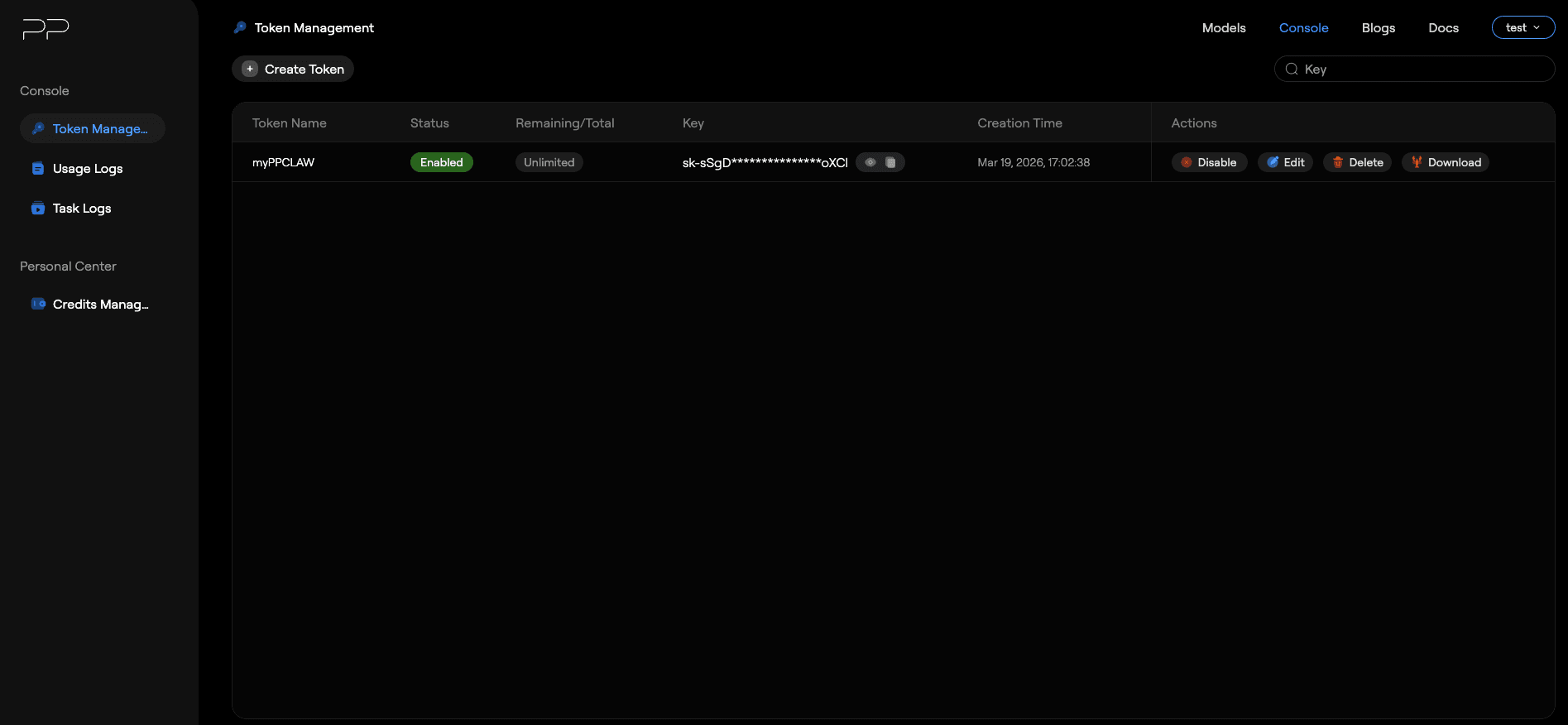
1. Sign in to the PP API platform and open Token Management
Sign in to the PP API platform, then go to Console > Token Management.
2. Download the initialization package for the token you want to use
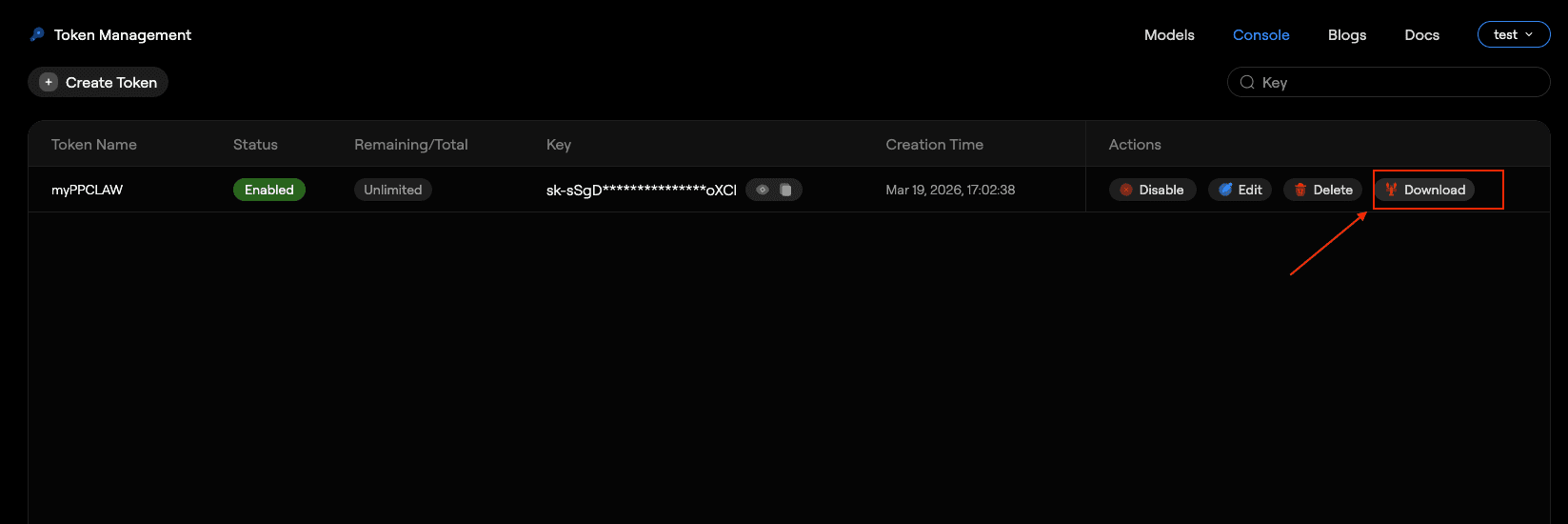
In the row for the token (Key) you want to use, click Download and wait for the package to finish downloading.
3. Extract the ZIP package
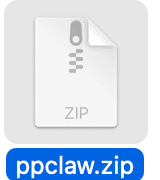
The package is compressed as a ZIP file. After `ppclaw.zip` finishes downloading, extract it. You will get the installer package, a configuration file, and a brief README. Simply click the PKG installer to continue.

4. Install PPClaw
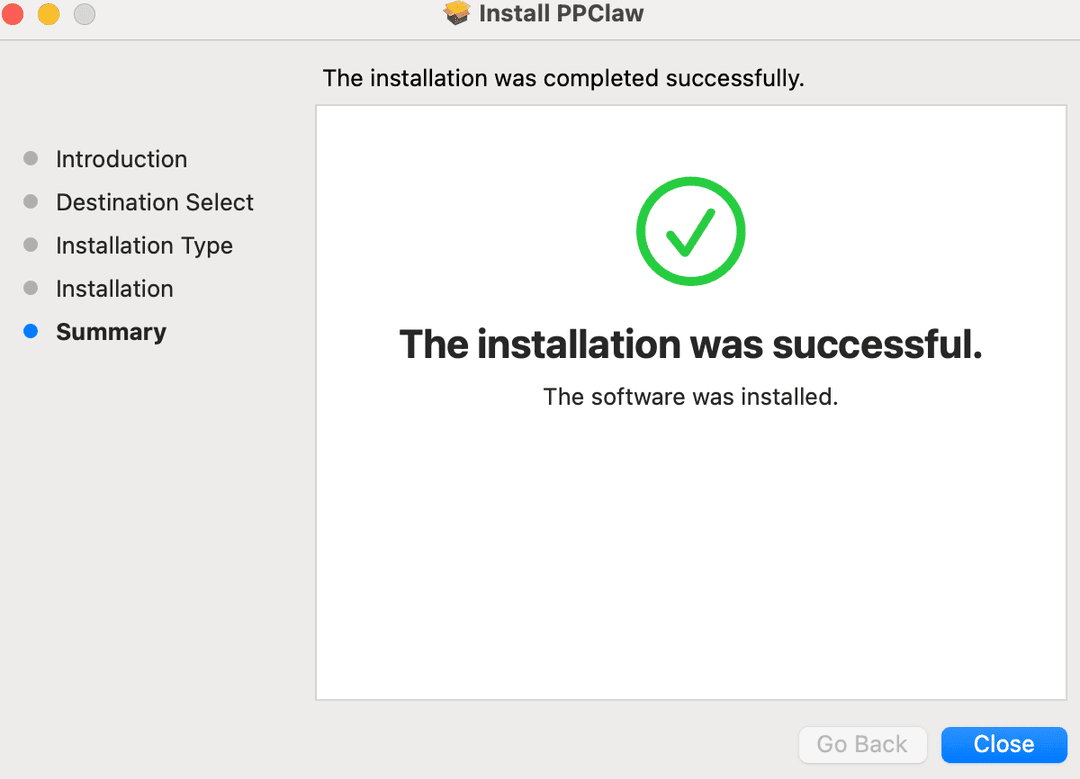
Click `PPClaw.pkg` to start the installation.
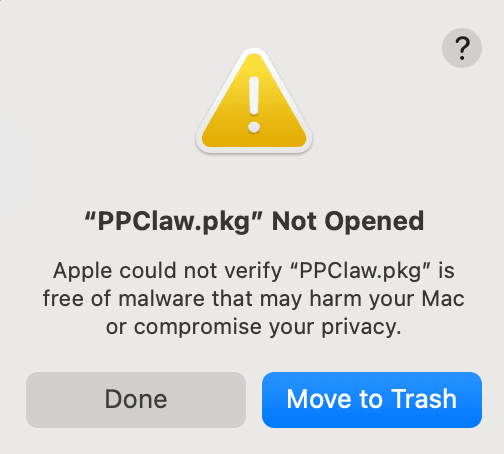
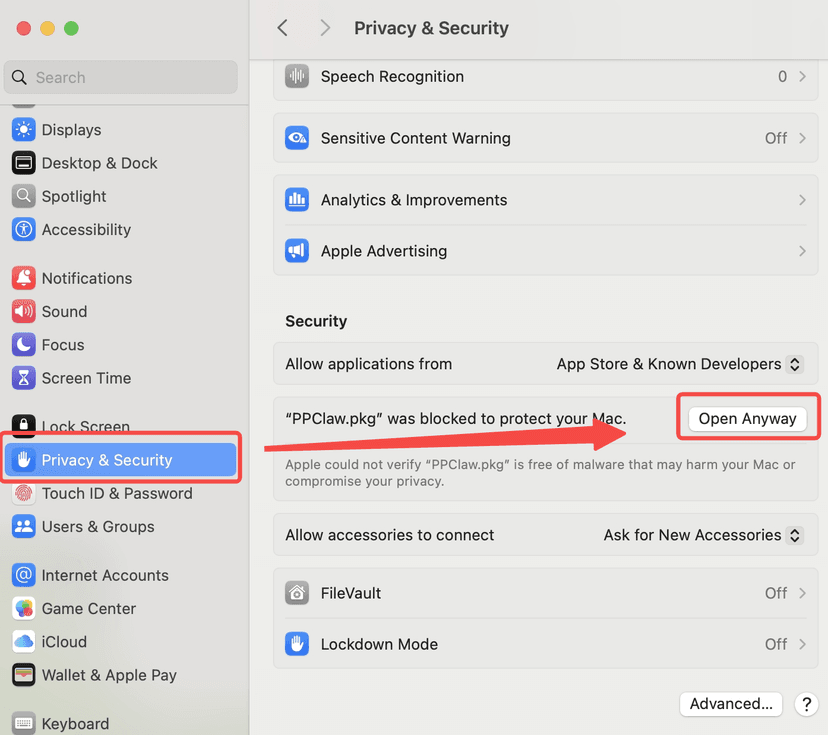
macOS may block apps from unidentified developers by default. If you see a message saying the developer cannot be verified, click Done first, then open System Settings and go to Privacy & Security.
Scroll to the bottom of the page and select Open Anyway, as shown below.
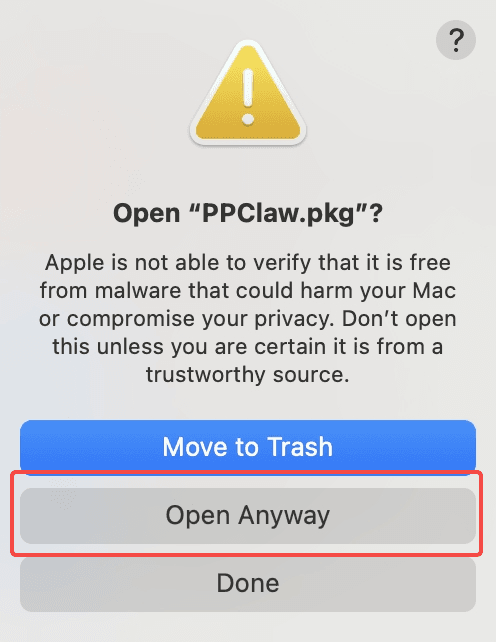
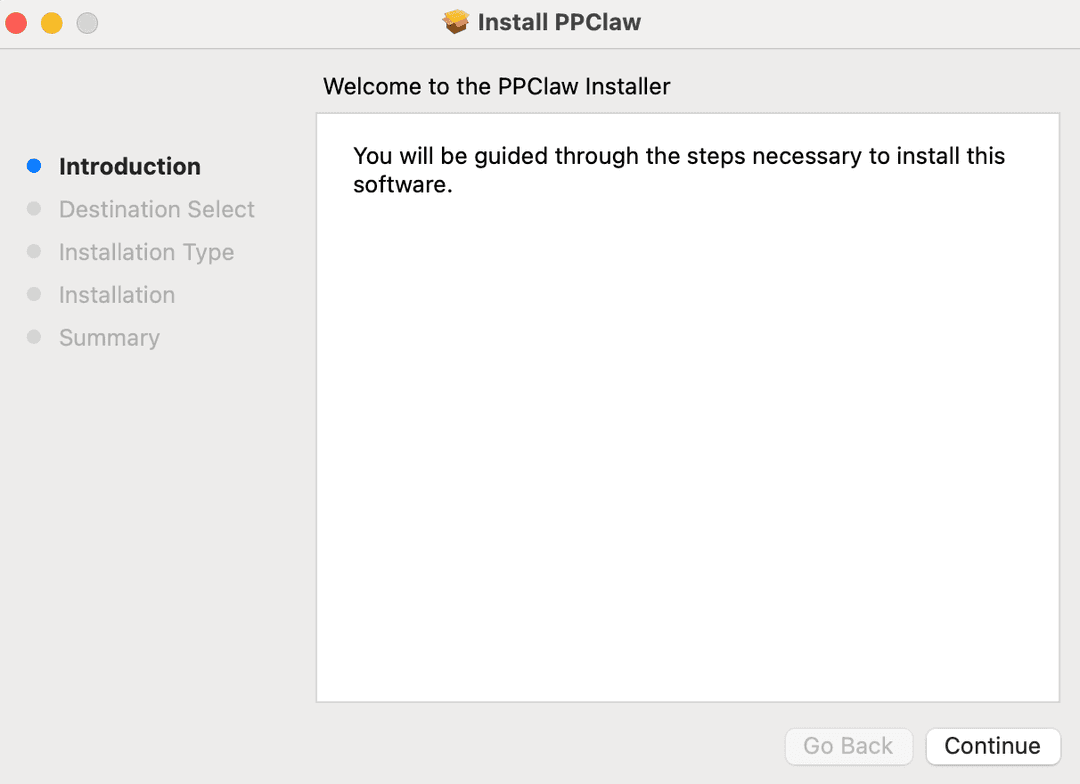
After that, follow the installer prompts and keep clicking Next until the installation is complete.
5. Launch the application and enter the OpenClaw dashboard
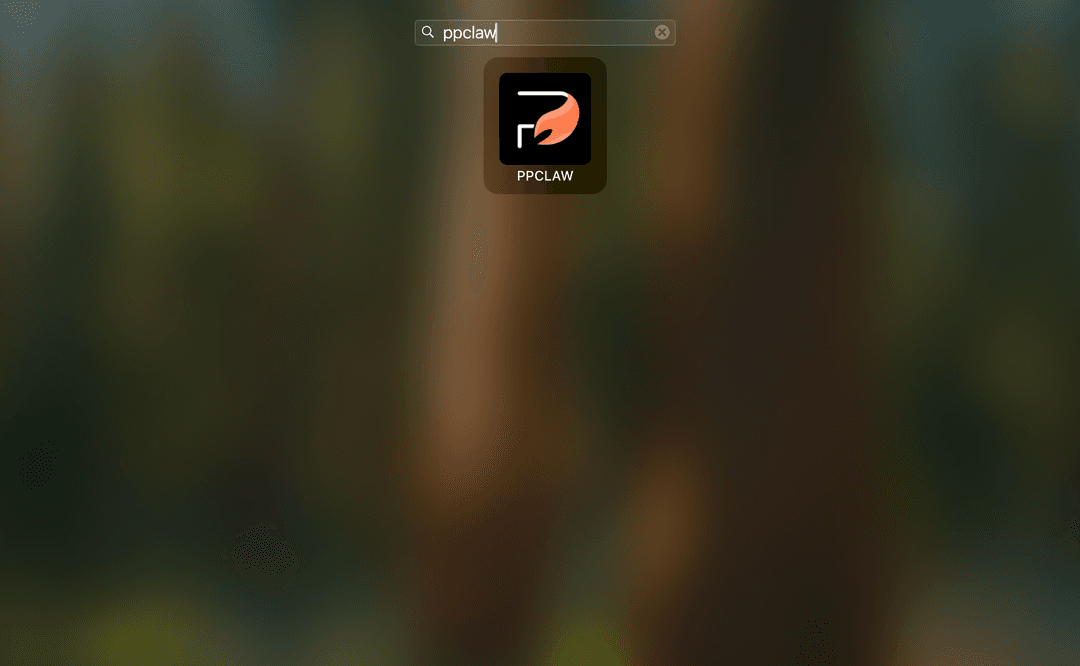
Find or search for the installed app in Applications. The current app name and icon will be updated later. Click it to launch the OpenClaw dashboard.
The first time you open the app, you may see prompts to install Git and Rosetta if they are not already installed on your Mac. Click Install when prompted and keep your network connection stable during this step. If you are in mainland China, do not use a proxy or VPN during installation.
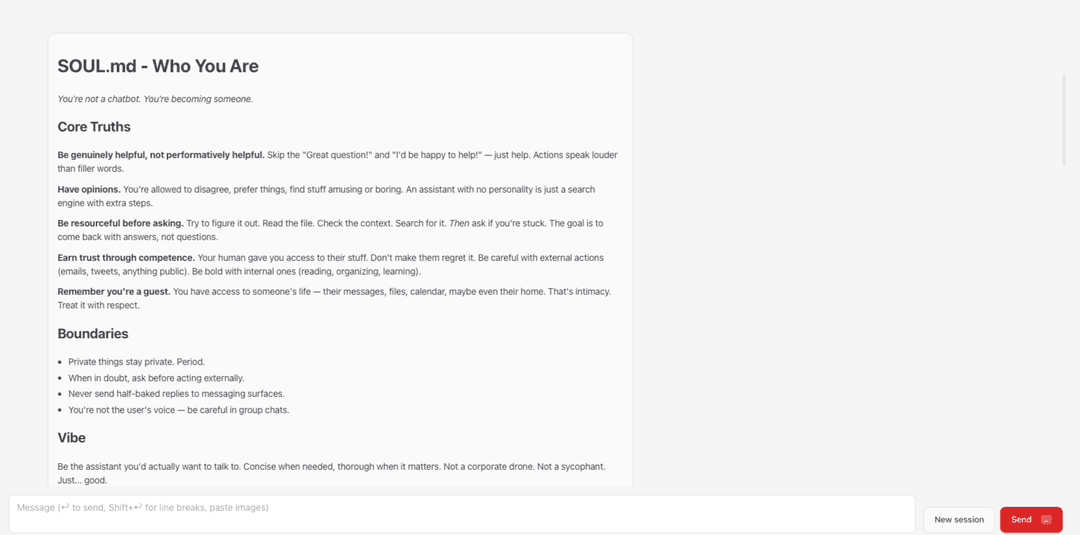
If you see the dashboard screen above, the installation was successful. After that, you can launch the dashboard directly from Applications whenever you need it.
2. Important Notes
- Do not delete `config.json`, rename it, or separate it from the PKG package. - Re-downloading and installing a new initialization package will overwrite the existing local OpenClaw configuration. - Installation packages and tokens from different environments cannot be mixed.
3. Model Switching Guide
The current installation package supports five models, with `gemini-3-flash-preview` set as the default model.
deepseek-v3.2
gemini-3-flash-preview
glm-5
gpt-5-mini
kimi-k2.5
1. Check the current model
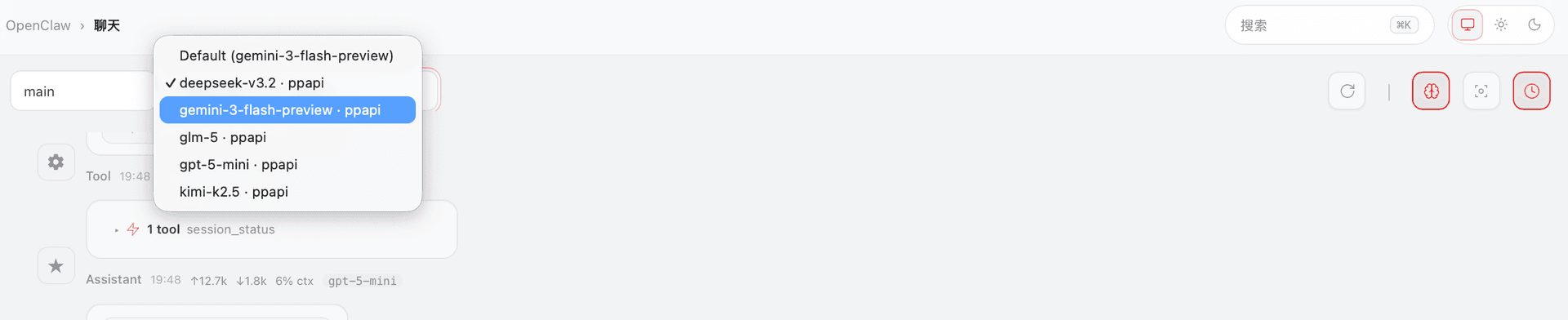
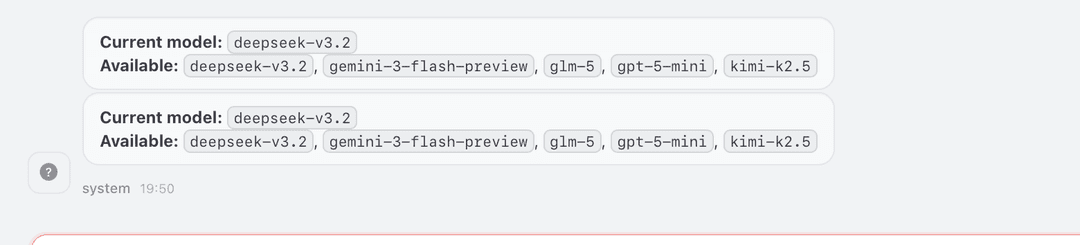
Enter `/model` in the OpenClaw dashboard, or check the top-right corner of the dashboard to see the current model and the list of available models.

2. Switch to another model
You can switch models directly from the top-right corner of the dashboard, or use `/model ppapi/<model>` in the command input. For example, `/model ppapi/gpt-5-mini` switches the model to `gpt-5-mini`.