1. Get Your PP API Key
Visit https://www.ppapi.ai/ to sign up and create your API key. You will need this key to authenticate with the PP API service when configuring Claude Code Router.
2. Install Claude Code (Optional)
If you already have Claude Code installed, you can skip this step. Otherwise, follow these commands to install it from scratch.
# Install homebrew
/bin/zsh -c "$(curl -fsSL https://gitee.com/cunkai/HomebrewCN/raw/master/Homebrew.sh)"

# Install npm
brew install node

# Install Claude Code
npm install -g @anthropic-ai/claude-code
3. Configure Claude Code Router
3.1 Installation
Claude Code Router is available on GitHub at https://github.com/musistudio/claude-code-router. Install it globally with npm:
npm install -g @musistudio/claude-code-router3.2 Configure API Provider
Launch the Claude Code Router WebUI by running:
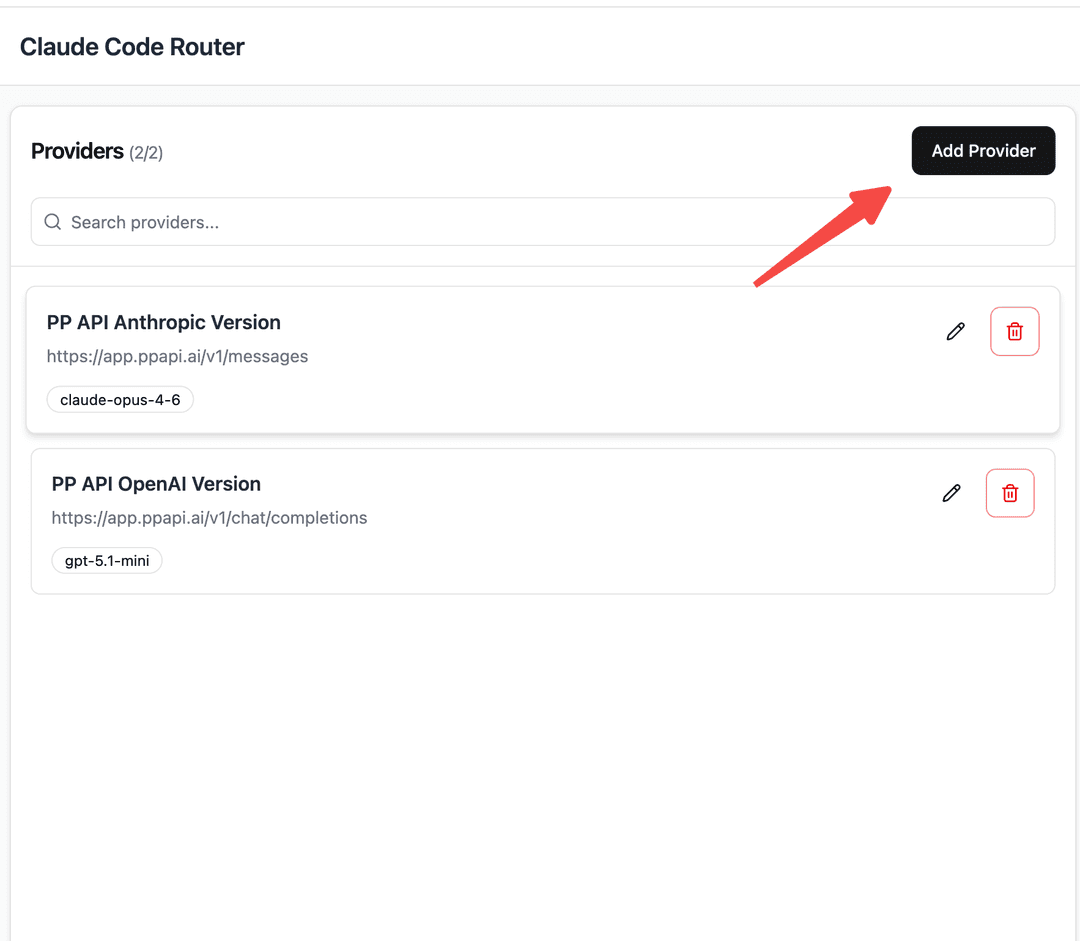
ccr uiIn the WebUI, click "Add Provider" to add a new provider. Fill in the API Full URL and the key you created earlier.
API Full URL: • Anthropic Version: https://app.ppapi.ai/v1/messages • OpenAI Version: https://app.ppapi.ai/v1/chat/completions For the API Key, use the key from your PP API console. For Models, visit https://www.ppapi.ai/models, pick the models you want, and copy the model names.
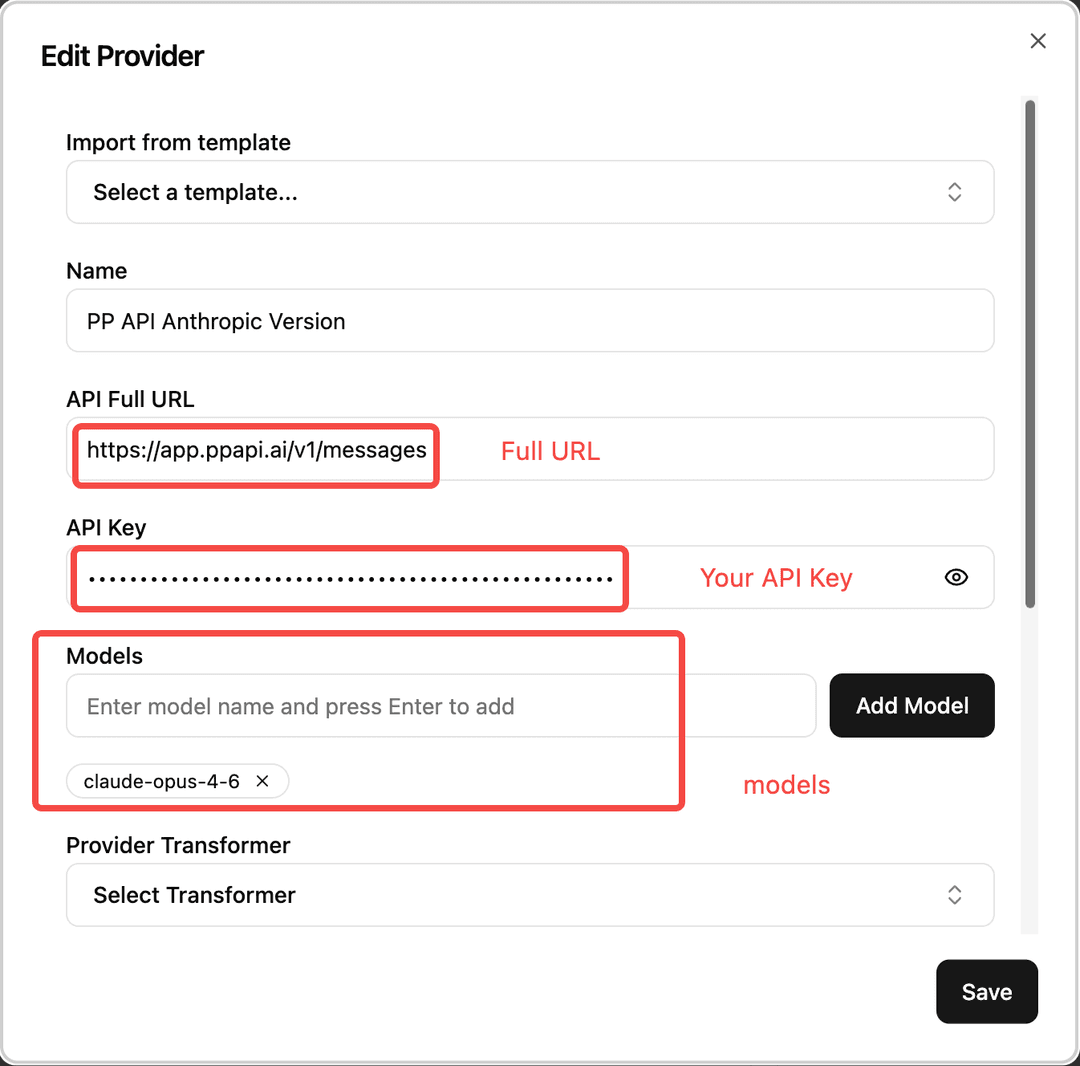
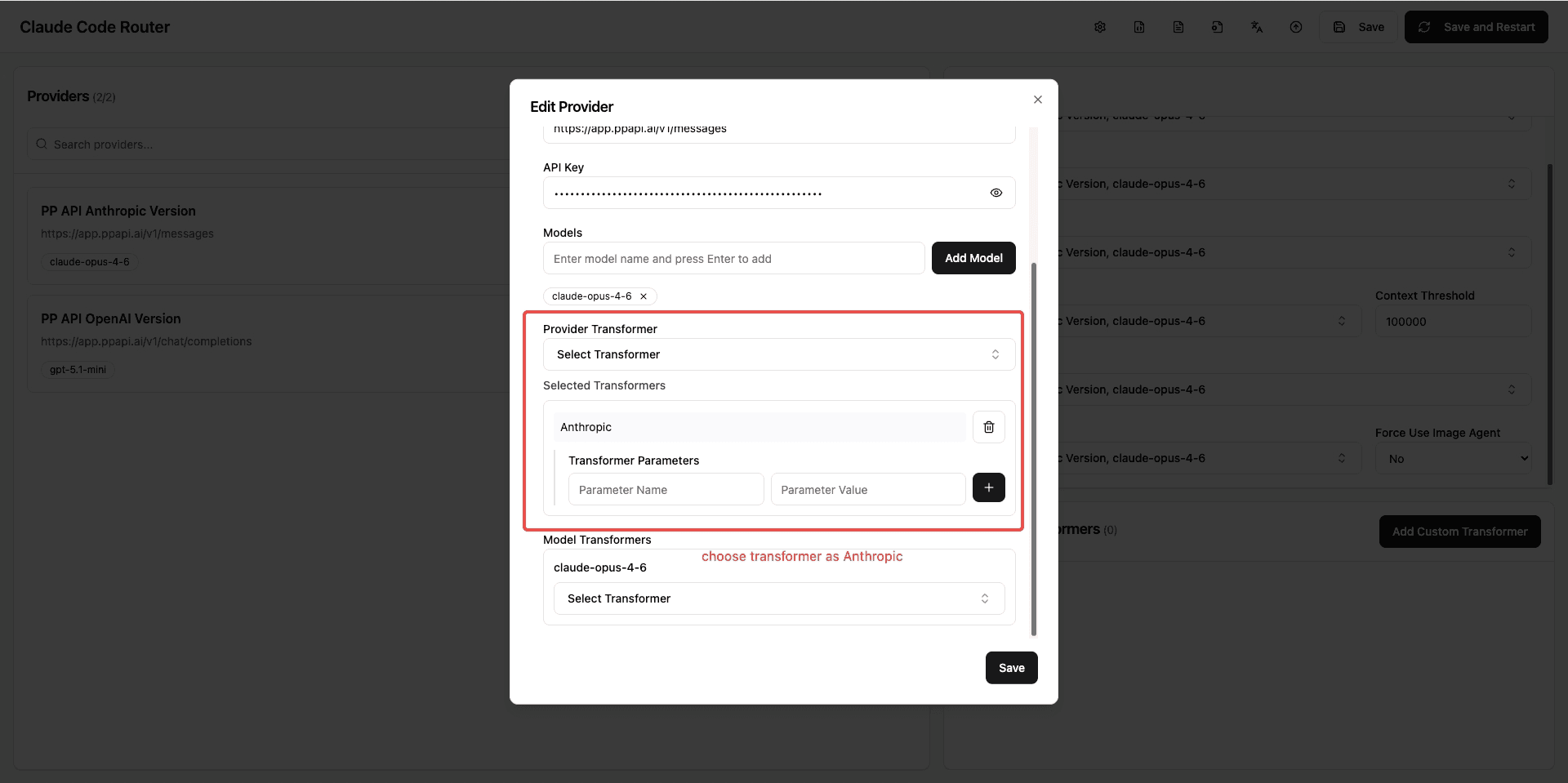
Select the appropriate transformer for your provider. For example, if you are using the Anthropic API version, choose "Anthropic" as the Provider Transformer.
3.3 Configure Models
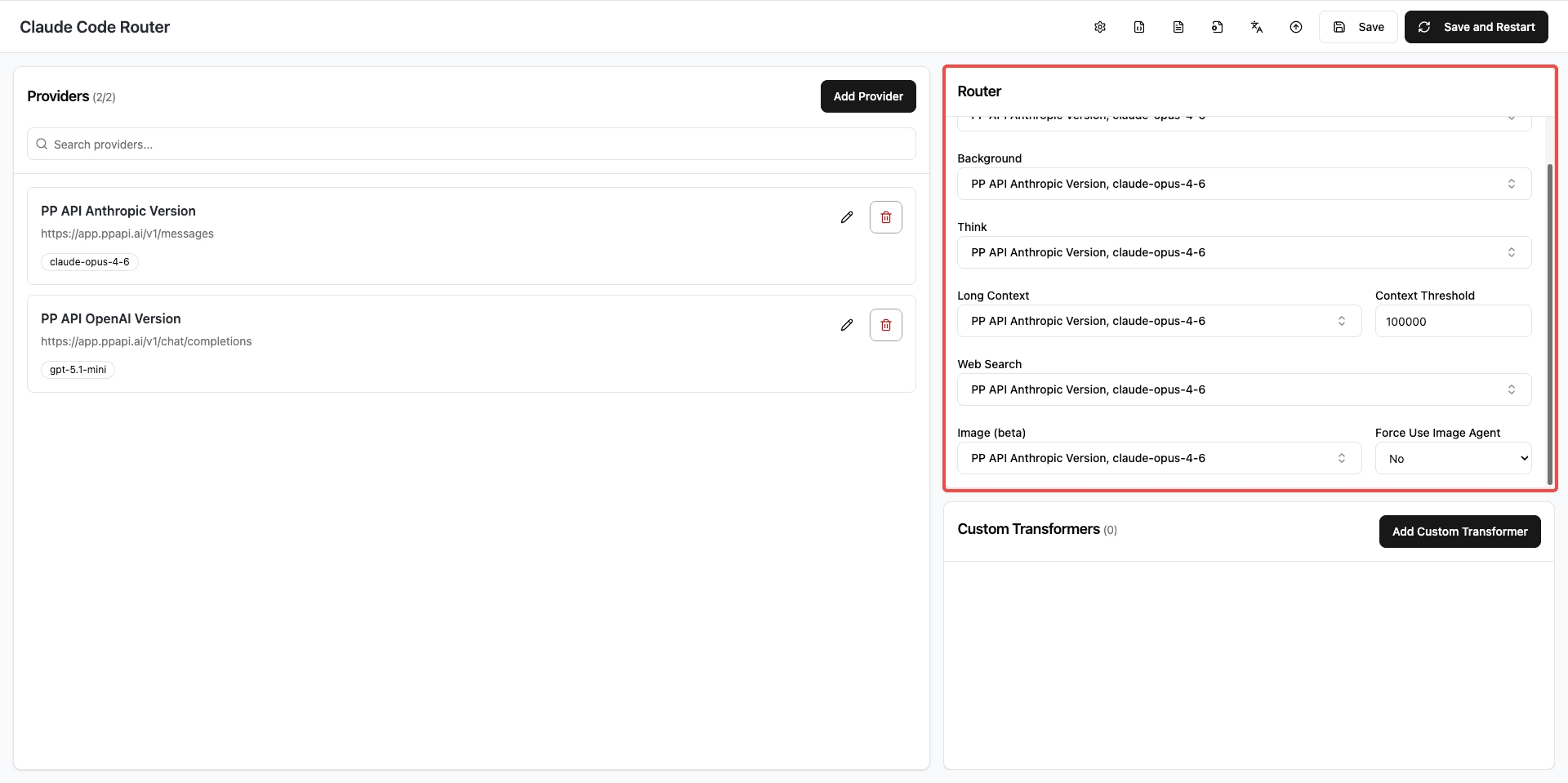
In the Claude Code Router WebUI, configure which model to use for different scenarios such as Background, Think, Long Context, Web Search, and Image processing.
4. Start Using Claude Code
Once everything is configured, simply run the following command to start Claude Code through the router:
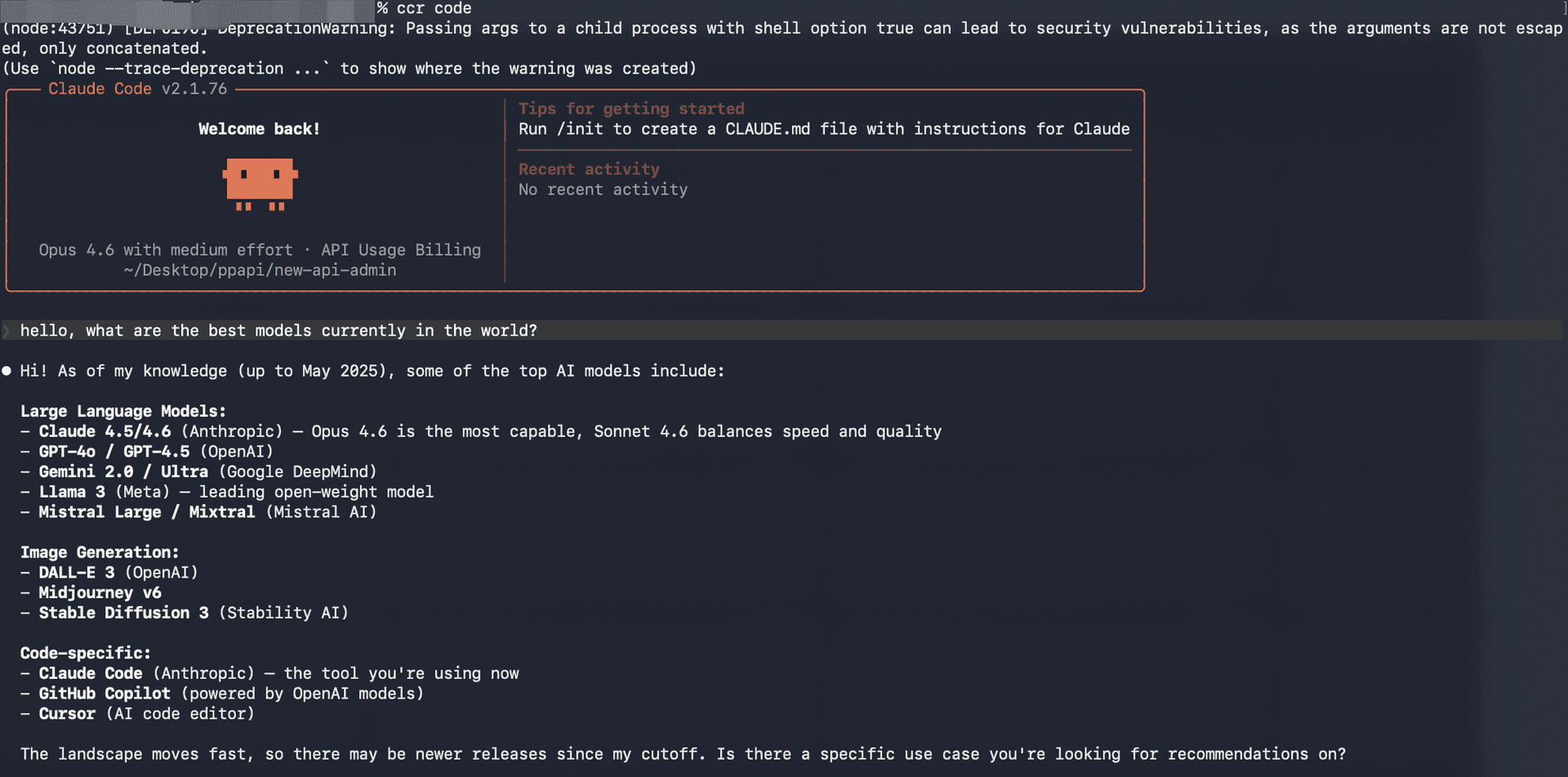
ccr codeThat's it! You can now use Claude Code powered by PP API. Enjoy coding with AI assistance at better prices and higher availability.