Dashboard provides visualized statistics of your API usage, helping you understand usage distribution and trends.
Access URL: https://app.ppapi.ai/dashboard
1. Page Overview
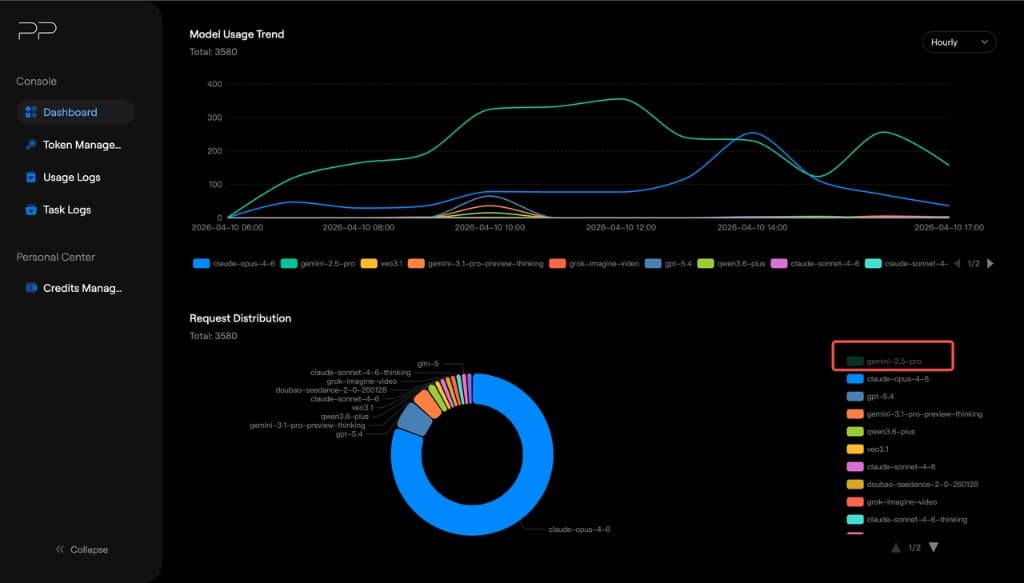
The Dashboard page includes the following core components: • Time range picker: the start time input at the top of the page, supports precise selection down to the second ◦ The time range cannot exceed 30 days • Quick range buttons: click the clock icon to quickly select a preset time range ◦ Supports Last 24h and Last 7 days • Filter dimension: a dropdown at the top-right, lets you break down data by API key (Key) • Time granularity: supports aggregation by hour, day, and week • Model Usage Distribution chart: shows model usage distribution (bar chart) and the cost share across models • Model Usage Trend chart: shows usage trend over time (line chart) • Request Distribution chart: shows request distribution across models (pie chart)
2. Filters and Controls
| Control | Description |
|---|---|
| Start Time / End Time | Select the time range, format: YYYY-MM-DD HH:mm:ss |
| Quick range (clock icon) | Quickly choose a preset range (Last 24h, Last 7 days) |
| By Key | Split statistics by API key dimension |
| Hourly dropdown | Set the chart time granularity (e.g. Hourly = hourly aggregation) |
3. Chart Explanations
3.1 Model Usage Distribution
Shows the cost distribution across models within the selected time range. The top shows Total: $X.XXXX as the total spending in the range.
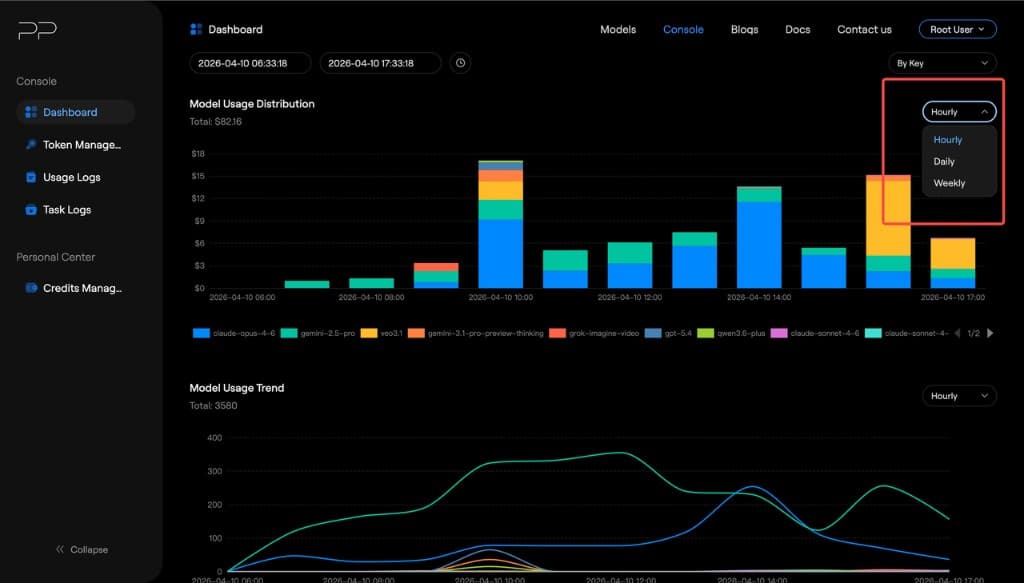
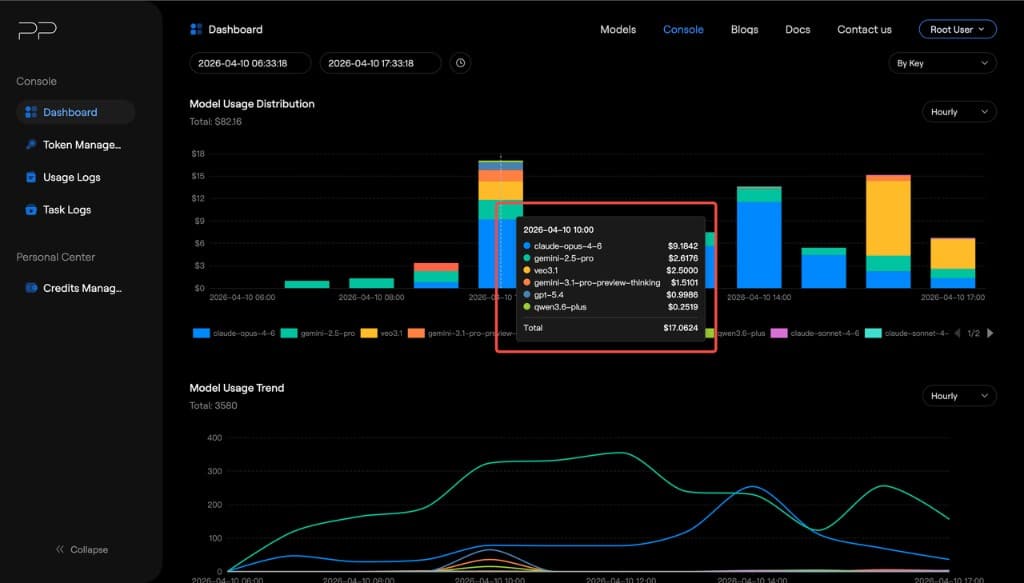
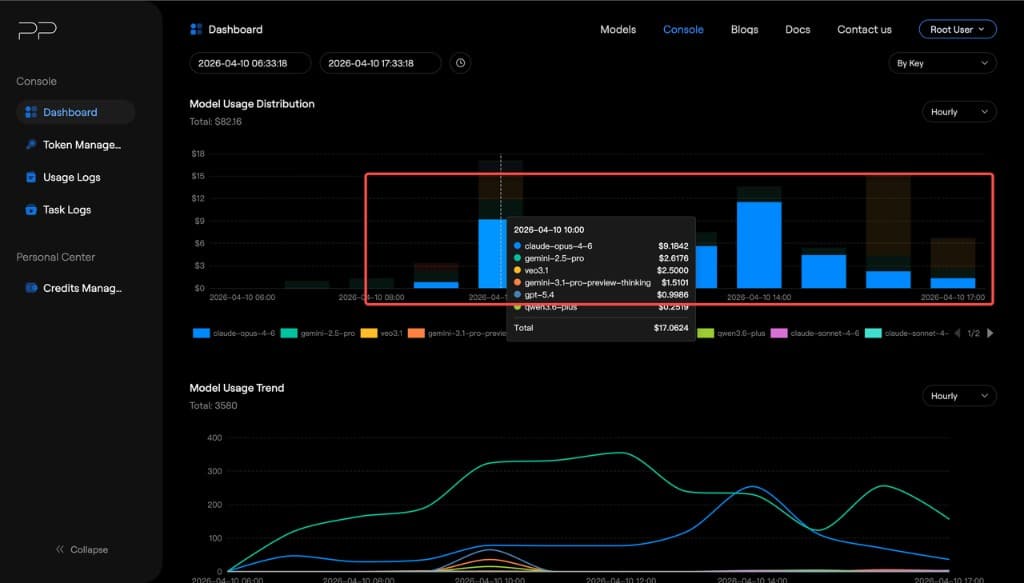
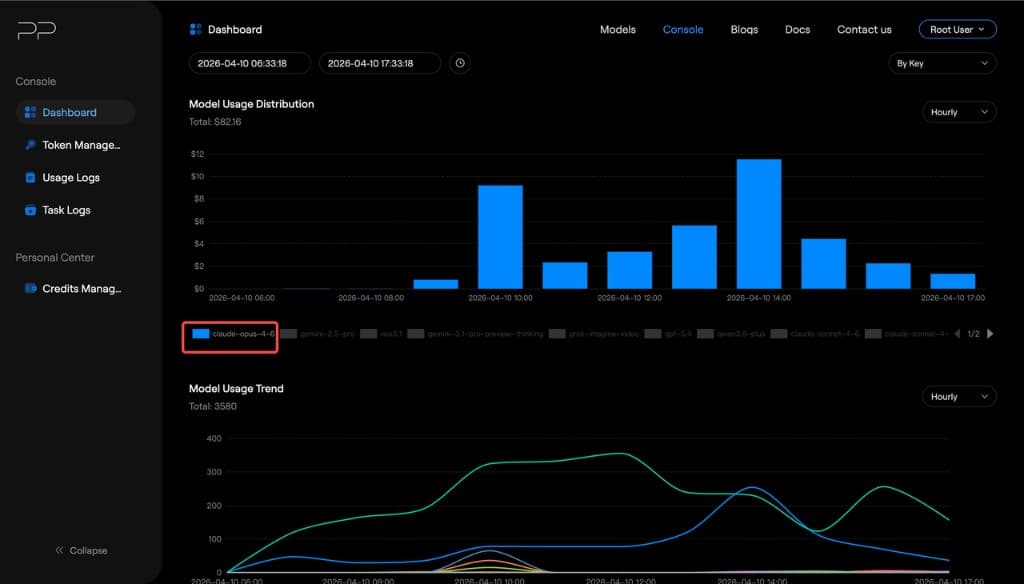
Interactions: 1. Click the time granularity selector at the top-right of the chart to pick a different time dimension. 2. Hover over a corresponding time area: the chart shows the top 9 usage models in that area, plus others and the total. 3. Hover over a corresponding model area: the chart fades other models and keeps the hovered model’s usage prominent. 4. Click the rectangular icon in front of the model name below the chart to fully reveal that model’s usage.
3.2 Model Usage Trend
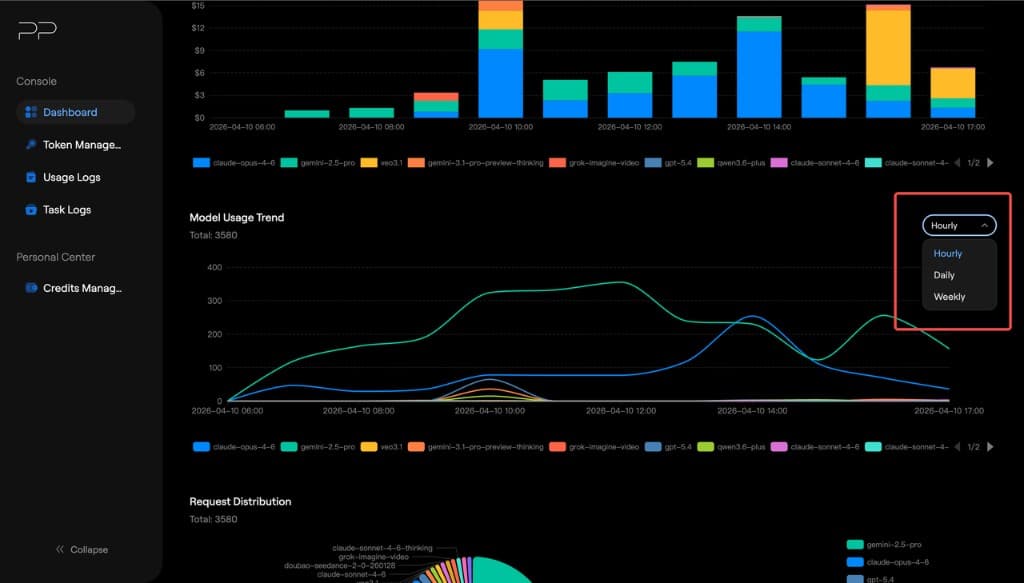
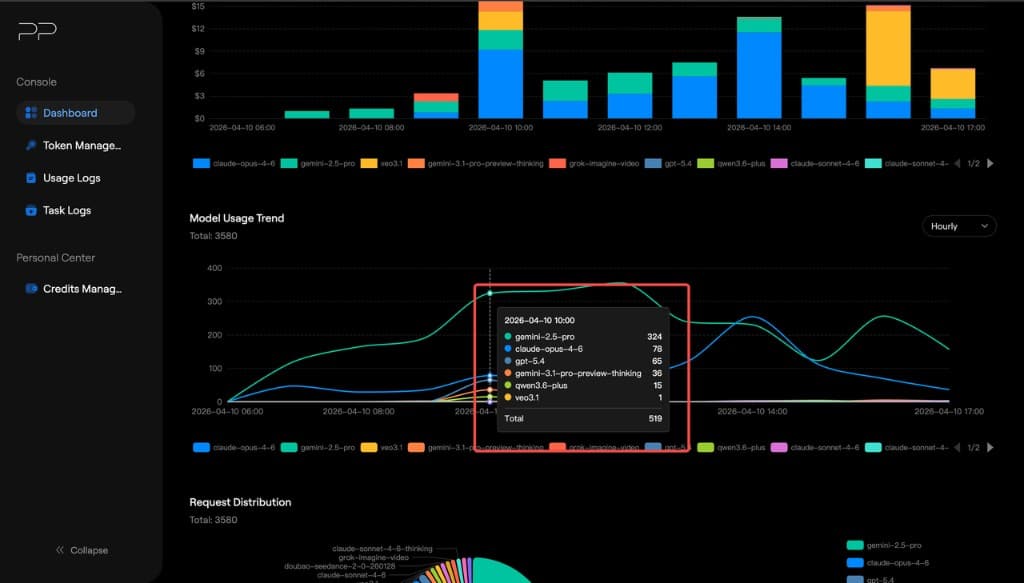
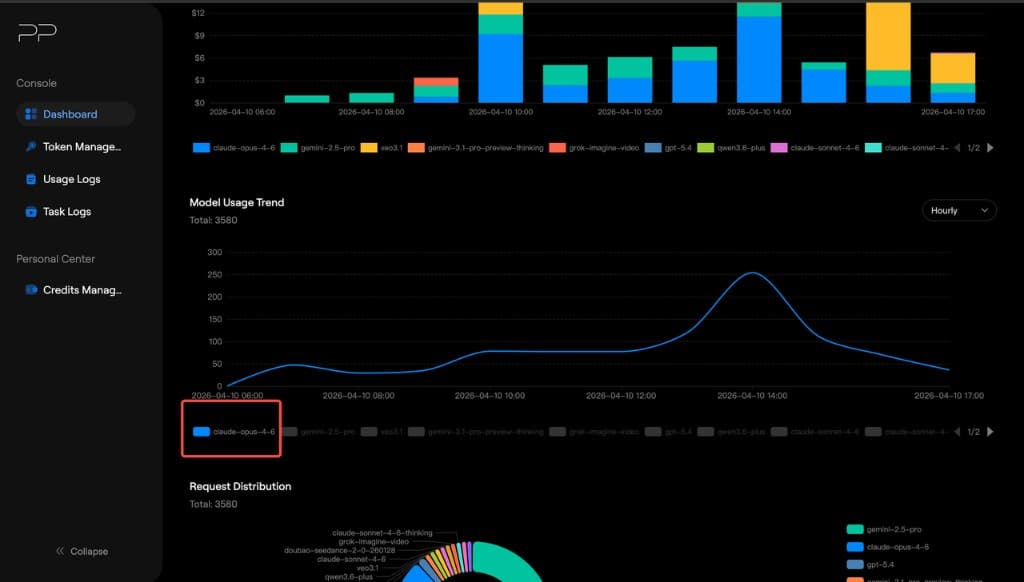
Shows the time trend of usage volume within the selected time range. The top shows Total: N as the total request count in the range. Supports switching time granularity.
Interactions: 1. Click the time granularity selector at the top-right of the chart to choose a different time dimension. 2. Hover over the corresponding time area: the chart shows the top 9 usage models in that area, plus others and the total. 3. Click the rectangular icon in front of the model name below the chart to fully reveal that model’s usage.
3.3 Request Distribution
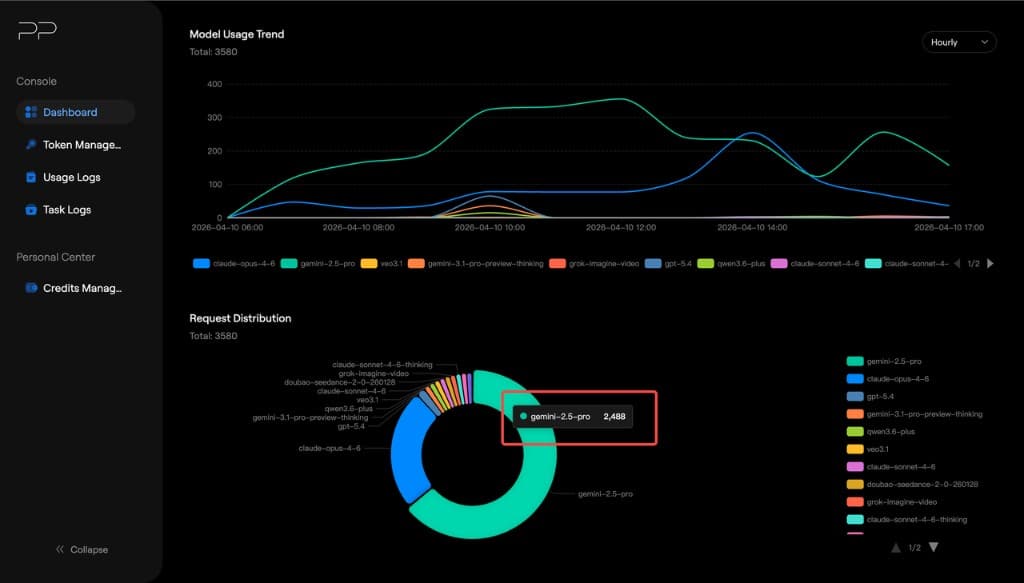
Shows the time trend of request usage within the selected time range. The top shows Total: N as the total request count in the range.
Interactions: 1. Hover over a pie slice: the slice area expands and shows the corresponding usage. 2. Click the rectangular icon in front of the model name on the right to hide the corresponding usage and stack more usage on top.
4. Common Scenarios
• Check today’s usage: use the quick buttons to select "Last 24 h" to see today’s cost distribution across models. • Compare usage across different keys: filter by "By Key" to view the usage of a specific API key. • Analyze cost trends: expand the time range and observe the cost movement in the Model Usage Trend chart.
FAQ
Q: Do charts show "No data in this range"? A: There are no API calls within the selected time range. Try adjusting the time range, or confirm that the selected API key has calls during that time. Q: Is Dashboard data real-time? A: Dashboard data has a slight delay, typically updated within 1 minute.